



Why Is My PC So Slow?What to Do: from the First Check to When to Replace It
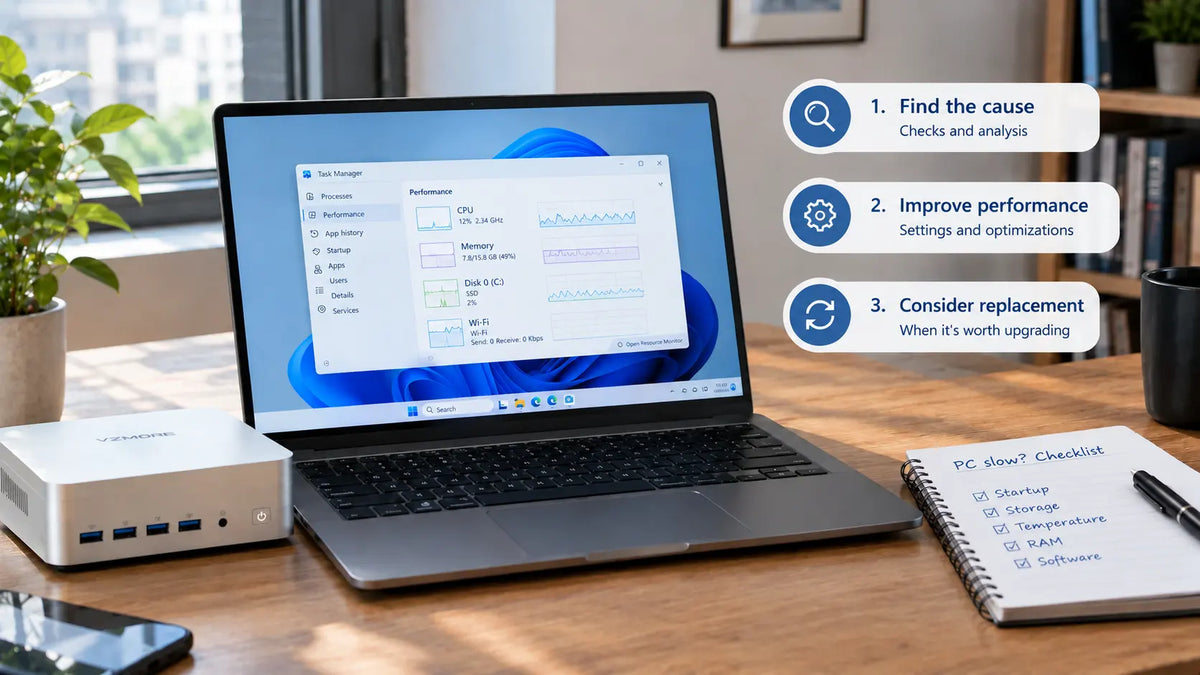
Is your PC slow and you’re not sure where to start? Begin by pinning down the cause. The reasons can vary widely, and the right fix depends on what’s actually going on.
In this guide, we walk through the key checks to run in Windows 11, what you can do to speed things up, and when it makes more sense to replace the computer altogether.
The Short Version
• It takes forever to start up. Look at the programs that launch with Windows. An old hard drive (HDD) can also slow down boot times.
• It was fine just a few days ago. Check recent updates and free up disk space, and run a virus scan.
• It starts fast, then slows down. It could be a heat problem. Make sure the vents aren’t clogged with dust.
• It freezes when you run several programs. Open Task Manager and check how much RAM is in use.
• It’s gotten slower year after year. Before replacing it, see whether swapping the drive or adding RAM makes sense.
Slow or Frozen? Two Different Problems
A slow PC takes longer than usual to get things done, but it still responds to what you do. For example, it might take several seconds to open a program or for the browser to load a page. These slowdowns can come from too many apps running, a sluggish drive, or hardware that simply isn’t up to the task.
A frozen PC is a different story: an app may stop responding, or the whole system may lock up for a few seconds and keep you from working. Possible causes include:
• overheating
• driver problems
• RAM that’s completely maxed out
• a drive that’s starting to fail
Before you do anything, try to figure out whether your computer is just slower than usual or actually freezing. That distinction will help you pick the most useful checks.
The 10-Minute Checkup
Windows 11 includes a few built-in tools to help you see what’s slowing your computer down. In about ten minutes, you can check resource usage, any errors, and the condition of your drive.
Task Manager: What to Look For
Press Ctrl + Shift + Esc and open the Processes tab in Task Manager. Check three numbers:
• CPU: If usage stays high even when you aren’t doing anything demanding, see which processes are using the most resources.
• Memory: If your RAM is nearly full, switching between programs can get slower.
• Disk: Usage stuck at 100% can point to heavy background activity or a problem with the drive.
Click a column header to sort the processes. On the Startup apps tab, you can turn off programs that don’t need to run at startup.

Reliability Monitor: Your Error History
Press Windows + R, type perfmon /rel, and press Enter. This opens Reliability Monitor, which shows the errors Windows has logged over time.
Red X icons flag critical events such as crashes, while yellow triangles mark warnings. Select the dates when you ran into problems and review the details.
Recurring errors or recent updates can help you track down what’s causing the freezes, even if they don’t necessarily prove a link to the slowdown.
Checking Your Drive’s Health
Go to Settings > System > Storage > Advanced storage settings > Disks & volumes. Select the drive and click Properties.
For supported NVMe SSDs, Windows shows the temperature, estimated remaining life, and any reliability issues. This built-in check isn’t available for HDDs or SATA SSDs.
If your computer still uses an HDD, keep in mind that its mechanical parts generally make it slower than an SSD, even when it’s working properly.

When Does Your PC Slow Down? Causes and Fixes by Timing
To figure out why your PC is slow, pay attention to when the problem shows up. A never-ending startup, for example, can have different causes than a slowdown that appears after half an hour of work.
It’s Slow Right from Startup
If Windows takes several minutes to load, check which programs launch automatically under Settings > Apps > Startup and turn off the ones you don’t need. OneDrive syncing can also weigh on startup.
If your computer still uses an HDD, switching to an SSD can dramatically cut load times.
It Suddenly Became Slow
Was your PC running fine just a few days ago? Check recent updates under Settings > Windows Update > Update history.
Malware, a nearly full drive, or background tasks like file indexing can also slow the system down. Run a scan from Windows Security > Virus & threat protection and check how much space you have left under Settings > System > Storage.
It Slows Down After a Few Minutes of Use
If your computer loses speed while you’re using it, it may be overheating. When the processor gets too hot, it reduces its own performance to protect itself. This is called thermal throttling.
Make sure the vents are clean and nothing is blocking them. An unusually loud fan can also be a sign of cooling problems.
It Freezes When You Open a Lot of Apps
A video call, an Excel file, and a pile of browser tabs can overwhelm a computer that’s short on RAM. When memory runs out, Windows falls back on the drive, which slows everything down.
Check RAM usage in Task Manager and close programs you aren’t using. If it happens often, consider adding more memory, if your PC supports it.
It Gets Worse Every Year
Newer software can demand more than an older computer can deliver. Before replacing it, consider upgrading the RAM and the drive. If you’re still on Windows 10, keep the support situation in mind too. We cover it in the section on repairing versus replacing.
|
When it happens |
Likely cause |
First step |
|
At startup |
Too many startup apps, an HDD |
Turn off startup apps you don’t need |
|
Out of nowhere |
Updates, malware, a full drive |
Run a virus scan and check free space |
|
After a few minutes |
Overheating |
Check the airflow and vents |
|
With many apps open |
Not enough RAM |
Close programs you aren’t using |
|
Worse every year |
Aging hardware |
Weigh an upgrade against a replacement |
What to Avoid
Before installing a program that promises to speed up Windows in a few clicks, take a close look at what it really is. Some software can actually make things worse. As Microsoft explains, potentially unwanted applications can slow down your device, show unexpected ads, or install other programs.
In particular, steer clear of so-called registry cleaners, which promise to remove unused entries to boost performance. The registry holds important information that Windows and your installed programs rely on, and editing it incorrectly can cause serious problems.
Be careful with software that promises to update all your drivers automatically, too. Use Windows Update first and, if needed, check the manufacturer’s official website.
Finally, don’t turn off your antivirus or Windows security features to try to win back performance. Real-time protection scans files and programs for threats, and disabling it can leave your computer exposed to security risks.
Should You Repair or Replace Your PC?
A slow computer doesn’t necessarily need to be replaced. If the problem comes from an old HDD or too little RAM, upgrading those parts can be well worth it. But if the slowdowns persist, it’s worth asking whether it still makes sense to invest in the old PC.
Before you decide, consider these factors:
• The computer’s age: An older PC may have components that aren’t well suited to today’s software. Compare the cost of repairs with the price of a new device.
• Windows 11 compatibility: Use Microsoft’s PC Health Check app to see whether your computer meets the requirements.
• Windows 10 support: Mainstream support ended on October 14, 2025. The Extended Security Updates (ESU) program provides security updates to eligible personal devices through October 12, 2027, under Microsoft’s terms and with no new features.
• Impact on your work: If you often have to restart your PC or wait several minutes for programs to open, think about how much time you lose every day. It matters even more if you work from home and spend long hours on your computer.
If your PC still meets your needs, upgrading a single component can extend its useful life. If you’re dealing with recurring failures, expensive repairs, or compatibility problems, replacing it may be the better move.
Buying a New PC? What Matters So You Don’t End Up Back Where You Started
If you’ve decided to replace your computer, start with what you do every day. For browsing, handling documents, and working with office software, you don’t necessarily need a high-end processor. But if you use demanding applications or often work with many programs open, you’ll need more resources.
Beyond the processor, think about how much RAM you need: at least 16GB for everyday use and 32GB for heavier multitasking. Also choose an NVMe SSD, which reads and writes data quickly and cuts load times.
Don’t overlook cooling. A good thermal system helps the processor maintain steady performance even during long work sessions, without generating too much noise.
For example, in VZMORE’s internal tests on August 12, 2026, conducted at a room temperature of 77°F (25°C), the configurations with the AMD Ryzen AI 9 HX 470 and Intel Core Ultra 9 185H sustained an average CPU power of 65W, with peaks of 80W. Measured noise levels were 42 dBA and 40 dBA, respectively, just two decibels apart even under sustained load.
The VZMORE mini PC lineup includes several configurations for different needs: the iX7 with an Intel Core Ultra 7 356H for office work, the AX7 Max with an AMD Ryzen AI 7 Pro 450 for professional multitasking, and the AX9 Max with an AMD Ryzen AI 9 HX 470 for more demanding work like photo and video editing.
Frequently Asked Questions
Will resetting my PC make it faster?
Not necessarily. Reinstalling Windows can fix slowdowns caused by software problems or misconfigured settings. But if the problem is hardware-related, a reset is unlikely to help much.
Does adding RAM always fix the problem?
No. More RAM only helps when your memory is frequently maxed out. If the slowdown comes from the drive or the processor, adding RAM won’t make much of a difference.
Why does my PC freeze even though the mouse still moves?
This can happen when the freeze affects only one app or process rather than all of Windows. In that case, press Ctrl + Shift + Esc to open Task Manager and see which programs aren’t responding.
How often should I clean the dust out of my computer?
Check the vents every 6 to 12 months, and more often if you have pets or a lot of dust at home. Before cleaning your PC, shut it down and unplug it, following the manufacturer’s instructions.
Conclusion
If your PC is slowing down, start by figuring out when it happens: at startup, when you open lots of programs, or after you’ve been working for a while. The tools built into Windows can help you pinpoint the problem and decide how to fix it.
Sometimes a few setting changes or a single component swap is all it takes. In other cases, buying a new computer may be the smarter choice.

VZMORE is a leading manufacturer of AI Mini PCs. Our systems combine whisper-quiet VC cooling, high performance, and intelligent AI processing power—tailored for demanding applications in home offices, creative workflows, and edge computing. Enjoy free shipping on all orders.
Related Articles

Subscribe to Newsletter
Get the latest news, product updates, and exclusive offers delivered straight to your inbox.