



What Is Thermal Throttling? Causes, Signs, and 8 Ways to Fix It
Key Takeaways
- Thermal throttling occurs when a CPU or GPU reduces performance to control excessive heat.
- A high temperature reading alone does not necessarily mean thermal throttling.
- Clock speed, power consumption, and thermal-limit indicators should be checked alongside temperature.
- Dust, restricted airflow, high ambient temperature, thermal-interface degradation, and high sustained power can contribute to thermal throttling.
- Mini PCs require careful thermal design because of their compact chassis and limited internal space.
- Thermal throttling is different from power throttling.
- Some thermal throttling can be reduced through maintenance and settings, while persistent throttling may reflect the system's thermal design limits
What Is Thermal Throttling?
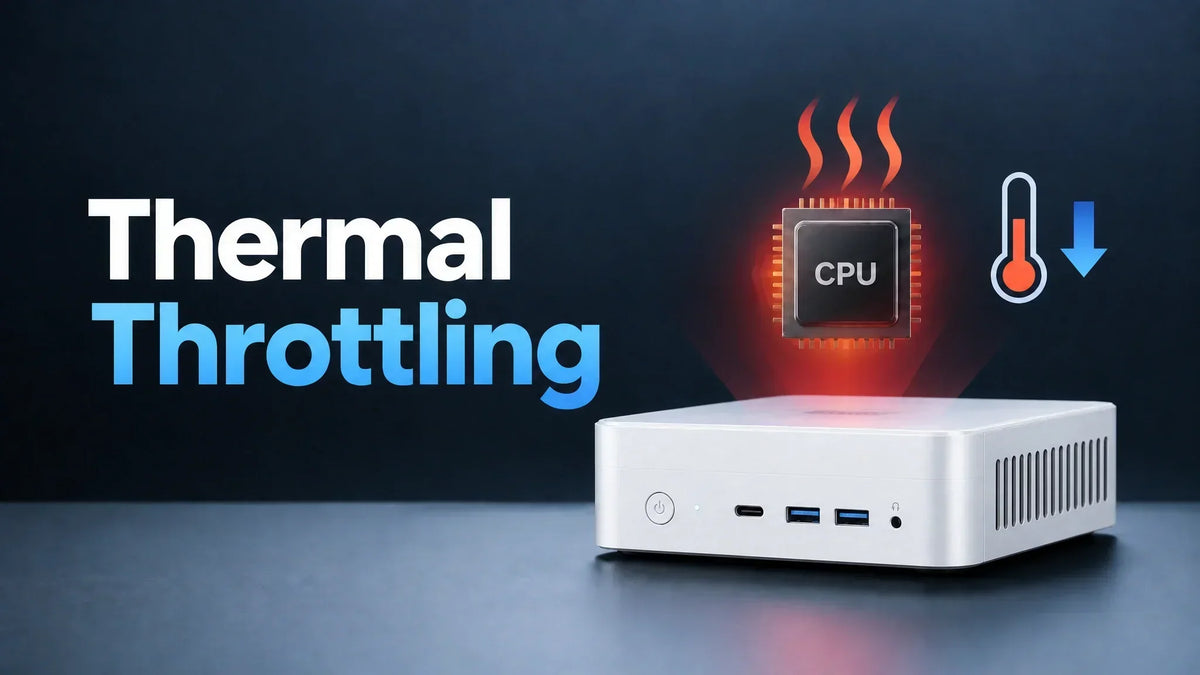
Thermal throttling is a protective mechanism used by modern CPUs and GPUs to reduce performance when they approach or reach a thermal limit. It exists first and foremost to prevent the hardware from overheating and destroying itself. Let’s dive into the specifics.
How Thermal Throttling Works
Here are the elements of thermal throttling:
- Temperature Monitoring: Processors have built-in temperature sensors that constantly monitor the amount of heat generated.
- Thermal Limits: Processors have safe temperature thresholds, which, when exceeded, mean the system recognises that continuing at full capacity could potentially cause damage to the hardware. For Intel processors, Tjunction Max (Tj Max) refers to the maximum junction temperature specified for the processor. Thermal management mechanisms may respond as the processor approaches this limit.
- CPU/GPU Frequency: Higher clock speeds mean more calculations per second, increasing heat output. For example, for the same processor under a comparable workload, higher clock speeds generally require more power and can generate more heat.
- Voltage/Power: Increasing voltage can significantly increase power consumption and heat generation, particularly because dynamic power is strongly dependent on voltage. Overclocking enthusiasts often adjust voltage settings, which requires enhanced cooling solutions to manage the additional heat.
- Heat Generation: Electric current passing through transistors inside a CPU or GPU generates heat.
- Performance Reduction: Upon detecting excessive temperatures and a potential danger to its components, the CPU/GPU automatically reduces its clock speed and power consumption, generating less heat.
- Recovering After Temperatures Fall: Once the temperature drops to safe levels, the processor increases its clock speed again to restore full performance.
Thermal Throttling vs. Normal Temperature Spikes
A brief temperature spike does not necessarily indicate thermal throttling. Throttling occurs when the system actively reduces performance, such as clock speed or power, in response to a thermal limit. It is totally different from temperature spikes, which are brief, safe heat surges that occur during heavy workloads. When this happens, the cooler ramps up to pull the temperature back to normal load levels. This allows modern CPUs to reach high temperatures during boost behaviour without being defective or continuously throttling.
Does Thermal Throttling Damage Your Computer?
Thermal throttling itself is a protective mechanism designed to prevent immediate damage to the processor and its components. However, in instances such as;
- Frequent thermal throttling
- Persistent overheating
- Sustained operation near thermal limits
- Significant performance loss
The CPU demands attention since these are signs that the cooling system, airflow, workload, or system thermal design has developed issues.
Signs Your Computer Is Thermal Throttling
The most common sign that your computer is thermal throttling is a noticeable slowdown in system performance. Let’s delve into the specifics.
Sudden CPU or GPU Clock-Speed Drops
A CPU may suddenly drop from a high boost frequency to a significantly lower frequency during sustained load. However, a frequency drop alone does not prove thermal throttling. It is one of the most obvious signs, but as a lone symptom it doesn’t prove thermal throttling since processors change their speeds constantly for many reasons, including software or driver bugs.
FPS Drops or Stuttering During Gaming
This symptom can set in after the drop in CPU or GPU clock speed. At the initial stages, when you launch the game on your PC, everything is normal with a smooth frame rate. However, after a period of sustained gameplay, the performance plummets or begins to hitch. This indicates that your CPU or GPU is rapidly alternating between slowing down to cool off and speeding back up. Again, like clock speeds, a drop in FPS can be caused by other bottlenecks. These include:
- GPU limitations
- CPU bottlenecks
- Memory limitations
- Driver problems
- Power limits
- Background processes
- Game setting
Performance Drops During Sustained Workloads
In Mini PCs, peak performance is totally different from sustained performance. This is because most CPUs and GPUs can create a short burst of performance, but operate at a lower sustained frequency even when thermal conditions stabilize. Performance drops when temperatures reach the thermal ceiling. It happens mostly with heavy workloads such as:
- Gaming
- Video encoding
- Rendering
- Compiling
- CPU stress tests
- AI workloads
Fans Run at High Speed, but Performance Still Drops
Fans may run at high speed while performance still drops, but it does not necessarily mean that the system has unlimited cooling capacity. This is because cooling in a processor is a chain and other factors like airflow and dust buildup significantly affect this process. Other factors that can make your fan run at high speed even on low performance include:
- heatsink capacity
- airflow path
- thermal interface
- chassis design
- heat density
- ambient temperature
- exhaust efficiency
What Causes Thermal Throttling?
Thermal throttling does not happen out of nowhere. There are usually a few clear reasons behind it.
1. Dust Buildup in Vents, Fans, or Heatsinks
Over time, dust collects inside your mini PC and blocks the airflow that keeps your components cool. When air cannot move freely, heat builds up fast. This is the number one cause of overheating in PCs and is completely preventable with regular cleaning.
2. Poor Airflow Around the Mini PC
Mini PCs need enough space around their vents to move air. When placed inside a tight cabinet, against a wall, or between other heat-producing devices, it restricts proper airflow. It becomes worse when the exhaust air moves back towards the intake as it draws in already warm air.
3. High Ambient Temperature
The cooling system in your PC works by pushing hot air out and pulling cooler air in. If the room itself is hot, the air coming in is already warm, which makes it much harder for your mini pc to stay cool.
4. Thermal Paste or Thermal Interface Degradation
Thermal paste sits between your CPU or GPU and the heat sink. Its job is to carry heat away from the chip. Thermal interface materials can degrade over time, but replacement should be based on the system's condition and manufacturer guidance rather than a fixed schedule.
5. High CPU or GPU Power Consumption
Higher power consumption usually produces more heat. A CPU or GPU running at higher power for a sustained period can place a greater demand on the cooling system.
6. Aggressive Performance or Power Settings
Some PCs have a high-performance mode that pushes the CPU and GPU as hard as possible all the time. This creates a lot of extra heat even when you do not need that much power, which makes throttling happen sooner.
7. Insufficient Cooling Capacity for the Workload
A Mini PC can be functioning normally while still reaching its thermal limit under a particular sustained workload. The cooling system has a finite capacity and must remove the heat produced by the processor and other components. If a workload continuously produces more heat than the system can dissipate while maintaining maximum performance, temperature will eventually approach the thermal limit.
8. Compact Chassis and Thermal Design Limitations
Size can create additional thermal challenges, especially for small-sized PCs. A compact chassis has less internal space for heatsinks, fans, heat pipes, and heat paths than a larger desktop system. A small cooling system can handle normal workloads but often has limited thermal headroom during sustained high-power operation.
CPU vs. GPU Thermal Throttling: What's the Difference?
CPU and GPU thermal throttling follow the same basic principles. Yet, there is a main difference; and it is which component reaches its limit and how the performance reduction appears.
CPU Thermal Throttling
CPU thermal throttling occurs when the processor reaches its thermal limit and reduces its performance to control its temperature. The exact limit varies between processors and depends on its generation, operating conditions, firmware, and manufacturer configuration.
GPU Thermal Throttling
GPU thermal throttling occurs when the graphics processor reaches its thermal limit and reduces its operating performance. When this happens, the GPU may reduce its clock speed and power consumption. In games, this can reduce FPS or cause less consistent frame times, lowers GPU clock speeds, and reduces frame rate consistency. It is not limited to dedicated graphics cards, as integrated GPUs can also hit thermal limits.
How to Tell Which Component Is Throttling
When the CPU temperature approaches its thermal limit, and the CPU clock falls while the workload remains demanding, CPU thermal throttling is often the issue. If the GPU temperature or hotspot rises towards its relevant limit and the GPU clock falls during a sustained graphics workload, GPU thermal throttling is most likely happening. The table below has more details:
| Indicator | What it may suggest |
| CPU reaches thermal limit + CPU clock/power drops | Possible CPU thermal throttling |
| GPU reaches thermal limit + GPU clock/power drops | Possible GPU thermal throttling |
| Performance drops without thermal limit | Could be power, software, memory or another bottleneck |
In a compact system, consider the whole thermal design, as the CPU and GPU do not operate in isolation: they both add heat to the same chassis. This determines the sustained performance the mini PC can maintain.
Thermal Throttling vs. Power-Limit Throttling: What's the Difference?
Thermal throttling and power throttling both reduce CPU or GPU performance; however, they happen for different reasons.
What Is Power Throttling?
Power throttling occurs when a CPU or GPU reaches a defined power or electrical limit. This results in the system reducing clock speed, voltage, or other operating parameters to keep power consumption within the allowed range. Power limits can be influenced by:
- The processor's design
- BIOS or firmware settings
- The mini PC manufacturer’s power configuration
- The available power supply
- Voltage and current limits
- Long-term sustained power limits
- Short-term boost power limits
- Cooling and chassis design
Power throttling is especially relevant in Mini PCs, and manufacturers limit processor power to control heat, noise, energy use, or the size of the required power adapter and cooling system.
How Thermal Throttling Is Different
The main difference can be summarised in the table below:
| Thermal Throttling | Power Throttling |
| Temperature is the limiting factor | Power/current is the limiting factor |
| Triggered by thermal limits | Triggered by power/electrical limits |
| Improving cooling may help | Better cooling may not solve the root cause |
| Temperature is often high | Temperature may remain relatively normal |
How to Check If Your Computer Is Thermal Throttling
Accurate diagnosis involves monitoring temperature, clock speed, power consumption, and throttling indicators altogether.
Step 1: Monitor CPU and GPU Temperatures
Start by recording the temperature of the PC when it is idle or performing light tasks. Afterwards, monitor the temperature of the CPU and GPU while the computer is under load. Hardware monitoring software can be used to display real-time sensor information.
Step 2: Monitor Clock Speeds and Utilization
Clock speed and utilisation help show the frequency the component is operating at. A CPU under sustained load initially maintains a high clock speed. If its temperature continues to rise and the clock speed drops after reaching a thermal limit, this is a strong indication of thermal throttling.
Step 3: Check Thermal Throttling and Performance Limit Indicators
Many hardware monitoring tools provide specific indicators for throttling or performance limits. You may see terms like:
- Thermal throttling
- Thermal limit
- PROCHOT
- Thermal limit reached
- Temperature limit
- Power limit
- Current limits
- Performance limit
If a monitoring tool reports a thermal limit event at the same time temperature rises and performance falls, thermal throttling could be the issue.
Step 4: Reproduce the Problem Under Sustained Load
A sustained workload is one of the most useful ways to identify thermal throttling because it allows you to observe how temperature, clock speed, power and performance change over time. Monitor before the workload begins and what happens as the system heats up. The goal is not to run a test for a specific period of minutes but to observe what happens after the cooling system reaches a relatively stable operating temperature.
Step 5: Compare Performance Before and After Temperatures Rise
One of the most useful ways to identify thermal throttling is to compare cold performance with sustained performance.
You can do this:
- Benchmark immediately after starting the workload
- Benchmark again after the system reaches a stable thermal state.
- Compare clock speed, temperature, power, and performance
You do not need to use a fixed 10, 20, or 30-minute test. The workload operation should be long enough to reach a stable thermal state.
What Temperature Is Too Hot for a CPU or GPU?
No single temperature limit is the hallmark for every CPU or GPU, since different processors and graphics chips have different thermal specifications. The most useful approach is to compare the measured temperature with the component’s specifications and check what the system does at that temperature.
CPU Temperature Limits Depend on the Processor
Manufacturers normally provide a maximum temperature or thermal specifications for each specific processor. Intel processor specifications may include values such as Tjunction Max (Tj Max), while platform documentation may also reference case temperature measurements such as Tcase. Tjunction Max (Tj Max) is the maximum junction temperature specified for a processor. As the processor approaches this limit, its thermal management mechanisms can reduce frequency and power to control temperature.
GPU Temperature vs. GPU Hotspot Temperature
Reading GPU temperature is tricky as modern graphics processors report more than one reading. Sometimes called the GPU core or edge temperature, it represents the temperature measured by the GPU’s main temperature sensor. The GPU hotspot temperature on the other hand reports the hottest monitored area of the GPU.
Why There Is No Universal "Too Hot" Temperature
A temperature should be evaluated relative to the component's specifications and the observed behavior, not against a universal temperature rule. For instance, an Intel chip and an AMD chip do not use the same rules. One chip might slow down at 95 degrees Celsius (°C), while another safely runs smoothly at this thermal limit.
8 Ways to Fix Thermal Throttling
The first step is identifying why the system is getting too hot. Cleaning, better airflow, better placement, sensible power settings, and proper maintenance can also help solve thermal problems.
1. Clean Dust From Fans, Vents, and Heatsinks
Dust enters exhaust vents, fans, and heatsink fins, blocking air intake. Every now and then, it is necessary to clear visible dust from vents and cooling systems and also check that the fan spins freely. The PC should be turned off during this process.
2. Improve Airflow Around Your Mini PC
A clear path for cool air to enter and warm air to leave is healthy for a mini PC. Ensure objects, cables, or other equipment do not block the intake and exhaust vents. Poor airflow can cause warm air to remain inside the chassis, which reduces cooling efficiency and increases internal temperature.
3. Improve Your Mini PC's Placement
The PC should be placed on a hard, stable surface that does not cover its vents. Avoid soft surfaces like beds, blankets, and cushions as they can restrict air intake. Also, avoid tightly enclosed spaces where hot exhaust air can collect around the system.
4. Adjust the Fan Curve or Performance Mode
A fan curve controls how quickly the cooling fan responds to rising temperatures. When the CPU or GPU becomes hot, a more aggressive cooling profile increases airflow if the PC allows fan-control or performance-mode changes. The best setting depends on the system and the workload.
5. Reduce CPU/GPU Power or Boost Setting
Reducing the CPU/GPU power limit can mitigate heat production during sustained workloads. Although it may slightly reduce execution speed, it produces stable sustained performance, especially when the original settings cause the processor to reach its thermal limit.
6. Check BIOS and Power Settings
BIOS and firmware can control important aspects of power management, fan behaviour, and hardware operation. For more details on your exact model, check the mini PC. If the problem started after a BIOS or firmware change, compare the current behaviour with the previous configuration where possible.
7. Replace Thermal Paste When Appropriate
Thermal paste helps transfer heat to the heatsink. Heat transfer can become ineffective if the interface has degraded or the heatsink has poor contact with the processor. Inspect the thermal interface condition and installation when you troubleshoot overheating.
8. Upgrade to a Better-Cooled Mini PC
If throttling occurs consistently, it may be a limitation from the system's thermal design capacity. In this case, you should upgrade to a better system. Look beyond the processor name and consider the following specs:
- CPU class,
- Sustained power behaviour,
- Cooling solution,
- Heatsink design,
- Fan configuration,
- Ventilation,
- Chassis design
- Long-duration performance testing.
For example, the VZMORE’s AX9 Max lists a vapor-chamber cooling system, a larger heat-spreading area, 360-degree bottom air intake, and a 65 W sustained performance headroom.
Thermal Throttling in Mini PCs: What Buyers Should Know
When shopping, use this practical buyer checklist to ensure the system can handle its own heat:
- Processor specifications: Check the processor's rated TDP or power specifications, but don't use TDP alone to predict operating temperature. Cooling design, power limits, workload, and airflow also affect sustained temperatures.
- Cooling architecture: Look for units with active cooling setups and dedicated intake and exhaust pathways.
- Ventilation mesh: Ensure the chassis features multi-sided ventilation grilles to allow a steady supply of air.
- Fan design: Go for larger, fluid-dynamic bearing fans that move more air at lower and quieter RPMs.
- Heatsink capacity: Look for a cooling system that provides adequate heatsink capacity and heat transfer for the processor's sustained power level. Vapor chambers or copper heat pipes can be useful design approaches, but the overall cooling implementation matters more than any single component.
- Sustained performance reviews: Check independent reviews that test the device for hours of continuous use.
- Long-duration benchmarks: Check how it handles multi-loop stress tests like Cinebench R23 or Time Spy.
- Temperature under load: Verify that the system stabilizes safely below its thermal junction limit during peak execution.
- Fan noise: Ensure the fan does not produce a high pitched loud, distracting sound.
- Chassis design: Give preference to aluminum chassis. An aluminium chassis can help spread heat across the enclosure when it is designed as part of the thermal system, but chassis material alone does not determine cooling performance.
Frequently Asked Questions
Is Thermal Throttling Bad for Your PC?
No, thermal throttling is not bad for your PC. It is actually a built-in protection mechanism that reduces CPU or GPU performance when temperature reaches a thermal limit.
What Temperature Is Too Hot for a CPU?
There is no universal temperature that is too hot for all CPUs. The limit depends on the specific processor.
How Often Should You Replace Thermal Paste?
It should be replaced when there is evidence that the thermal interface has degraded. Also when the heatsink is removed the manufacturer recommends applying new paste.
Can Thermal Throttling Cause FPS Drops?
Yes. It can cause FPS drops if the CPU or GPU reduces its clock speed because of its thermal limit.
Does Thermal Throttling Reduce CPU Lifespan?
It is designed to protect the CPU and not shorten its lifespan. Its main purpose is to reduce power or clock speed when it approaches the predefined thermal limit.
Can a Mini PC Overheat?
Yes, a mini PC can overheat. It has less space for cooling hardware and airflow than a larger desktop.
Can Thermal Throttling Be Fixed Without Replacing Hardware?
Yes. This can be done through cleaning dust, improving airflow, changing placement, adjusting fan or performance settings, and using reasonable CPU or GPU power.

VZMORE is a leading manufacturer of AI Mini PCs. Our systems combine whisper-quiet VC cooling, high performance, and intelligent AI processing power—tailored for demanding applications in home offices, creative workflows, and edge computing. Enjoy free shipping on all orders.
Related Articles
Subscribe to Newsletter
Get the latest news, product updates, and exclusive offers delivered straight to your inbox.